The IFNA function was officially introduced with Excel 2013, but thanks to Modern Functions Update (MFU) you can now run it on your Excel 2007 & 2010 versions. It works exactly as its original Microsoft counterpart.
Description
The NUMBERVALUE function converts a text string representing a number into a numeric value, in a locale-independent way. This means you can specify exactly which characters are used as decimal and group separators, regardless of your computer’s regional settings.
This is particularly useful for:
- International data: Converting European-style numbers like
1.234,56on a US-configured system - Data import: Processing numbers from external sources that use different formatting
- Cleaning data: Removing unwanted spaces and handling percentage signs
- Calculations: Preparing text-formatted numbers for use in SUM, AVERAGE, and other functions
Syntax
=NUMBERVALUE(text,[decimal_separator],[group_separator])
| Argument | Description |
|---|---|
text | Required. The text to convert to a number. |
decimal_separator | Optional. The character used to separate the integer and fractional part of the result. |
group_separator | Optional. The character used to separate groupings of numbers, such as thousands from hundreds. |
Examples
Basic Usage
=NUMBERVALUE("2.500,27", ",", ".")
Returns: 2500.27
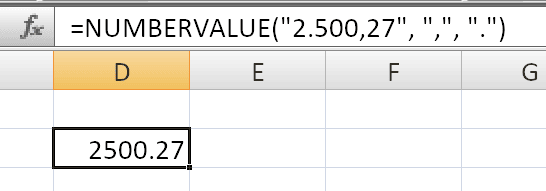
The decimal separator in the text is a comma, so we specify it as the second argument. The group separator is a period, specified as the third argument.
Converting European Format
If cell A2 contains 1.234,56 (European format):
=NUMBERVALUE(A2, ",", ".")
Percentage Signs
NUMBERVALUE automatically handles percentage signs:
=NUMBERVALUE("3.5%")
Multiple percent signs are additive:
=NUMBERVALUE("9%%")
Returns: 0.0009 (same as the formula =9%%)
Ignoring Spaces
The function ignores empty spaces in the text:
=NUMBERVALUE(" 3 000 ")
Empty Text
If you provide an empty string, it returns 0:
=NUMBERVALUE("")
Error Examples
=NUMBERVALUE("1.234,56", ".", ",")
Returns: #VALUE! – because the separators specified don’t match the text format.
Practical Use Cases
Important Notes
- ⚠️ potential issues only if OS and Office have different languages.
- ✅ The function is fully compatible with Excel 2007, 2010, and all later versions.
- ℹ️ If you don’t specify the separators,
NUMBERVALUEuses the separators from your current locale. - ℹ️ Only the first character is used if you provide multiple characters for separators.
- ⚠️ A
#VALUE!error occurs if: - ℹ️ Multiple percent signs in the text are additive.
See Also
IFNA– Handles#N/Aerrors gracefully