The CONCAT function was officially introduced with Excel 2016, but thanks to Modern Functions Update (MFU) you can now run it on your Excel 2007, 2010 & 2013 versions. It works exactly as its original Microsoft counterpart.
Description
The CONCAT function joins text from multiple ranges and/or strings into a single text string. It is designed as the modern replacement for the legacy CONCATENATE function.
The main advantage over CONCATENATE is that CONCAT can accept a range of cells as an argument, rather than requiring you to select each cell individually.
This is particularly useful for:
- Combining large datasets: Joining hundreds of cells without typing each reference individually
- Data consolidation: Merging text from entire columns or rows
- Report building: Creating text strings from multiple data sources
- Cleaning data: Preparing text for further processing
Syntax
=CONCAT(text1, [text2], ...)
Examples
Basic Usage – Joining First and Last Names
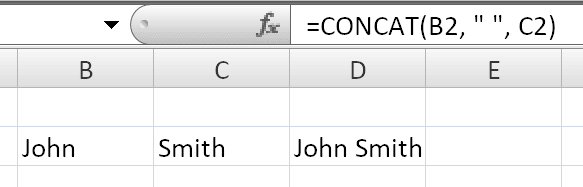
If cell B2 contains “John” and cell C2 contains “Smith”:
=CONCAT(B2, " ", C2)
Returns: "John Smith"
Joining a Range of Cells
If A1:A5 contains “A”, “B”, “C”, “D”, “E”:
=CONCAT(A1:A5)
Returns: "ABCDE"
Joining Entire Columns
=CONCAT(B:B, C:C)
Returns all values from column B followed by all values from column C.
Creating Sentences
=CONCAT("Population of ", A2, " ", A3, " is ", A4, "/km.")
If A2=”brook trout”, A3=”species”, A4=”32″, returns: "Population of brook trout species is 32/km."
Using the Ampersand Operator
The same result can be achieved using the & operator:
=B2 & " " & C2
CONCAT vs CONCATENATE
Why the difference matters:
With CONCATENATE, to join 10 cells you need:
=CONCATENATE(A1, A2, A3, A4, A5, A6, A7, A8, A9, A10)
With CONCAT, you can simply use:
=CONCAT(A1:A10)
This makes CONCAT much more efficient when working with large ranges.
Practical Use Cases
| Scenario | Benefit |
|---|---|
| Employee lists | Combine first and last names with spaces or commas |
| Product codes | Merge part numbers, colors, and sizes into full SKUs |
| Address formatting | Combine street, city, and postal code into full addresses |
| Text analysis | Prepare data for text comparison or duplicate checking |
| Report generation | Build dynamic text strings from data sources |
Limitations
- ⚠️
CONCATdoes not provide any delimiters or separators automatically. You must add spaces, commas, or other characters manually between arguments. - ⚠️ If the resulting string exceeds 32,767 characters (the Excel cell limit),
CONCATreturns the#VALUE!error.
Notes
- ✅ Fully tested – The implementation in Modern Functions Update works identically to Microsoft’s original function introduced in Excel 2016.
- ✅ The function is fully compatible with Excel 2007, 2010, and all later versions.
- ℹ️ While
CONCATENATEis still available for backward compatibility, Microsoft recommends usingCONCATfor all new work. - ℹ️ If you need to add separators automatically and ignore empty cells, use the
TEXTJOINfunction instead.
See Also
IFNA – Handles #N/A errors gracefully
TEXTSPLIT – breaks text strings into separate columns or rows using specific markers