The TEXTAFTER function was officially introduced with Excel 2021, but thanks to Modern Functions Update (MFU) you can now run it on your Excel 2007, 2010, 2013, 2016, 2019 and 2021 versions. It works exactly as its original Microsoft counterpart.
Description
The TEXTAFTER function extracts all text that occurs after a specified delimiter or substring. It’s the perfect tool when you need to get everything to the right of a certain character, word, or pattern.
Think of it as the RIGHT function on steroids. While RIGHT requires you to know exactly how many characters to extract, TEXTAFTER works with whatever text comes after your delimiter.
This is particularly useful for:
- Extracting last names: Get “Doe” from “John, Doe”
- Parsing email addresses: Extract the domain from “user@domain.com”
- Cleaning product codes: Get the variant suffix after a main code
- Preparing data: Isolate state from “City, State, Zip”
- Processing imports: Extract key information from structured text
Syntax
=TEXTAFTER(text, delimiter, [instance_num], [match_mode], [match_end], [if_not_found])
| Argument | Description |
|---|---|
text | Required. The text string to extract from. |
delimiter | Required. The character(s) that mark where to start extracting. |
[instance_num] | Optional. Which occurrence of the delimiter to use. Positive counts from left, negative from right. Default is 1. |
[match_mode] | Optional. Case-sensitivity: 0 = case-sensitive (default), 1 = case-insensitive. |
[match_end] | Optional. Treat end of text as delimiter: 0 = disabled (default), 1 = enabled. |
[if_not_found] | Optional. Value to return when no delimiter is found. Default is #N/A. |
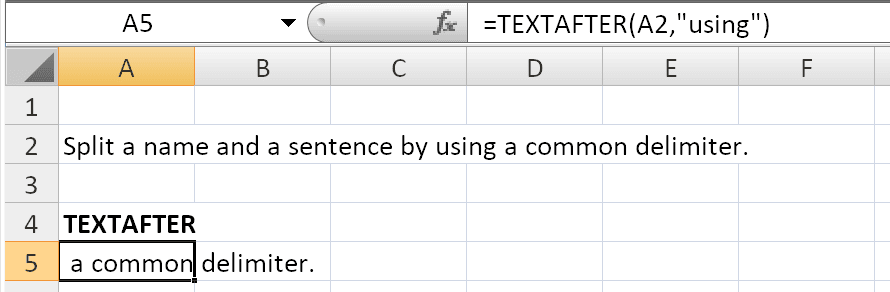
Examples
Basic Usage
To extract the last name from “John Doe” using a space as delimiter:
=TEXTAFTER("John Doe", " ")
Returns: "Doe"
With Multiple Delimiters
To handle different styles where the delimiter appears with and without a space:
=TEXTAFTER("Smith, John", {",", ", "})
Returns: "John"
The array constant {",", ", "} tells Excel to look for either delimiter.
Positive Instance Number (Counting from Left)
For the text “ABX-112-Red-Y”:
=TEXTAFTER("ABX-112-Red-Y", "-", 1)
Returns: "112-Red-Y" (after the first hyphen)
=TEXTAFTER("ABX-112-Red-Y", "-", 2)
Returns: "Red-Y" (after the second hyphen)
Negative Instance Number (Counting from Right)
To extract text after the last delimiter:
=TEXTAFTER("ABX-112-Red-Y", "-", -1)
Returns: "Y" (after the last hyphen)
=TEXTAFTER("ABX-112-Red-Y", "-", -2)
Returns: "Red-Y" (after the second-to-last hyphen)
Case-Insensitive Search
By default, TEXTAFTER is case-sensitive. To ignore case:
=TEXTAFTER("Width X Height", "x", , 1)
Returns: " Height" (finds “X” even though we searched for “x”)
The match_mode argument (1) tells Excel to ignore case.
Handling “Not Found”
By default, TEXTAFTER returns #N/A if the delimiter is not found. To return a custom message:
=TEXTAFTER(A1, "@", , , , "No delimiter found")
Returns the text after “@” or "No delimiter found" if none exists.
Using Cell References
If A1 contains “apple-orange-grape”:
=TEXTAFTER(A1, "-", 2)
Returns: "grape"
TEXTAFTER vs Traditional Functions
Practical Use Cases
| Scenario | Formula |
|---|---|
| Extract last name | =TEXTAFTER(A1, " ") |
| Get domain from email | =TEXTAFTER(A1, "@") |
| Extract state from “City, State” | =TEXTAFTER(A1, ", ") |
| Get text after last space | =TEXTAFTER(A1, " ", -1) |
| Extract after second occurrence | =TEXTAFTER(A1, "-", 2) |
| Case-insensitive search | =TEXTAFTER(A1, "x", , 1) |
| Handle missing delimiter | =TEXTAFTER(A1, "@", , , , "Not found") |
Notes
- ✅ Fully tested – The implementation in Modern Functions Update works identically to Microsoft’s original function introduced in Excel 2024/Microsoft 365.
- ✅ The function is fully compatible with Excel 2007, 2010, and all later versions.
- ℹ️
TEXTAFTERis case-sensitive by default. Usematch_mode = 1to ignore case. - ℹ️ A negative
instance_numstarts searching from the end of the text. - ℹ️
TEXTAFTERalways returns a text string, even if the result looks like a number. - ⚠️ If
instance_numis out-of-range,TEXTAFTERreturns#N/A. - ℹ️
TEXTAFTERis the opposite ofTEXTBEFORE– it extracts what comes after the delimiter.
See Also
IFNA– Handles#N/Aerrors gracefullyTEXTBEFORE– Extracts text before a delimiterTEXTSPLIT– Splits text into multiple valuesTEXTJOIN– Joins text with delimiters