The COUNT.UNIQUE function is a unique feature introduced by Modern Functions Update (MFU) that does not exist in any version of Excel. You can now run it for free on your Excel from 2007 onward, including 365 and 2024 versions.
Description
The COUNT.UNIQUE function counts the number of unique values in a specified range or array. It returns the total count of distinct values, ignoring duplicates and blank cells.
This is particularly useful for:
- Data analysis: Count distinct customers, products, or categories
- Inventory management: Count unique items in a stock list
- Survey analysis: Count unique responses
- Data cleaning: Identify how many distinct values exist in a dataset
- Reporting: Create summary statistics for dashboards
Syntax
=COUNT.UNIQUE(array)
| Argument | Description |
|---|---|
array | Required. The range or array from which to count unique values. |
Important Notes
- The function counts distinct values – duplicates are counted only once.
- Blank cells are automatically ignored.
- ⚠️ Important: Empty cells are not the same as cells containing a formula that returns an empty string (
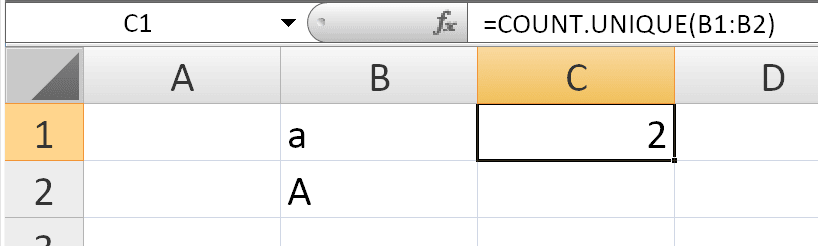
=""). Cells with=""are considered as containing a value (an empty text string) and will be counted as a unique value. - The function is case-insensitive: “APPLE”, “Apple”, and “apple” are treated as the same value.
- Numbers and text are treated separately: “10” (text) and
10(number) are considered different values. - The function works with text, numbers, dates, and other data types.
Example Highlighting the Difference
If A1:A10 contains:
| Cell | Value |
|---|---|
| A1 | Apple |
| A2 | Banana |
| A3 | Apple |
| A4 | (blank) |
| A5 | Orange |
| A6 | =”” |
| A7 | Banana |
| A8 | (blank) |
| A9 | Grape |
| A10 | =”” |
=COUNT.UNIQUE(A1:A10)
Returns: 5 (Apple, Banana, Orange, Grape, and the empty text string "" from the formulas)
The two blank cells (A4 and A8) are ignored, but the two cells with ="" (A6 and A10) are counted as one unique value (an empty text string).
Examples
Basic Usage
If A1:A10 contains the following: “Apple”, “Banana”, “Apple”, “Orange”, “Banana”, “Apple”, “Grape”, “Orange”, “Apple”, “Apple”
=COUNT.UNIQUE(A1:A10)
Returns: 4 (Apple, Banana, Orange, Grape)
With Numbers
If A1:A10 contains: 10, 20, 10, 30, 20, 40, 50, 50, 10, 30
=COUNT.UNIQUE(A1:A10)
Returns: 5 (10, 20, 30, 40, 50)
With Mixed Data Types
If A1:A5 contains: “10” (text), 10 (number), “10”, 20, “20”
=COUNT.UNIQUE(A1:A5)
Returns: 4 (“10”, 10, 20, “20”) – note that “10” and 10 are considered different.
With Dates
If A1:A10 contains dates with duplicates:
=COUNT.UNIQUE(A1:A10)
Returns the number of distinct dates in the range.
Using a Named Range
If you have a named range called Products:
=COUNT.UNIQUE(Products)
With Dynamic Arrays
To count unique values in a dynamic array:
=COUNT.UNIQUE(UNIQUE(A1:A10))
COUNT.UNIQUE vs Other Functions
| Feature | COUNT.UNIQUE | UNIQUE + COUNTA | COUNTIF | SUMPRODUCT |
|---|---|---|---|---|
| Simple syntax | ✅ Yes | ❌ Complex | ❌ Complex | ❌ Complex |
| Dynamic updates | ✅ Yes | ✅ Yes | ❌ No | ❌ No |
| Case-insensitive | ✅ Yes | ✅ Yes | ✅ Yes | ✅ Yes |
| Ignores blanks | ✅ Yes | ❌ No (unless filtered) | ❌ No | ❌ No |
| Array formula required | ❌ No | ❌ No | ❌ No | ✅ Yes |
Practical Use Cases
| Scenario | Formula |
|---|---|
| Count unique products | =COUNT.UNIQUE(Products) |
| Count unique customers | =COUNT.UNIQUE(CustomerID) |
| Count unique categories | =COUNT.UNIQUE(Category) |
| Count distinct dates | =COUNT.UNIQUE(SaleDate) |
| Count unique responses | =COUNT.UNIQUE(SurveyResponses) |
| Count unique values with dynamic data | =COUNT.UNIQUE(A1:A100) |
Common Problems
| Problem | What It Means | What To Do |
|---|---|---|
| #NAME? error | Excel doesn’t recognize COUNT.UNIQUE | Install Modern Functions Update |
| #VALUE! error | Invalid argument | Ensure the range is valid |
| Returns 0 | No values in range or all are blank | Check your data |
| Case-sensitive results | Data contains variations | Use UPPER or LOWER to normalize |
Notes
- ✅ Fully tested – The implementation in Modern Functions Update works reliably.
- ✅ The function is fully compatible with Excel 2007, 2010, and all later versions.
- ℹ️
COUNT.UNIQUEis a unique MFU feature not found in any Excel version. - ℹ️ The function is case-insensitive: “Apple” and “apple” are treated as the same value.
- ℹ️ Blank cells are automatically ignored.
- ⚠️ Cells containing
=""(formula returning an empty string) are not ignored – they are counted as a unique empty text value. - ℹ️ Text and numbers are treated differently: “10” (text) and
10(number) are distinct. - ⚠️ The function works with a single array argument only.
See Also
Modern Function Update: List of new functions