The Pick a date is a unique feature introduced by Modern Functions Update (MFU) that does not exist in any version of Excel. You can now run it for free on your Excel from 2007 onward, including 365 and 2024 versions. This feature allows you to select a date from a calendar inside Microsoft Excel.
Description
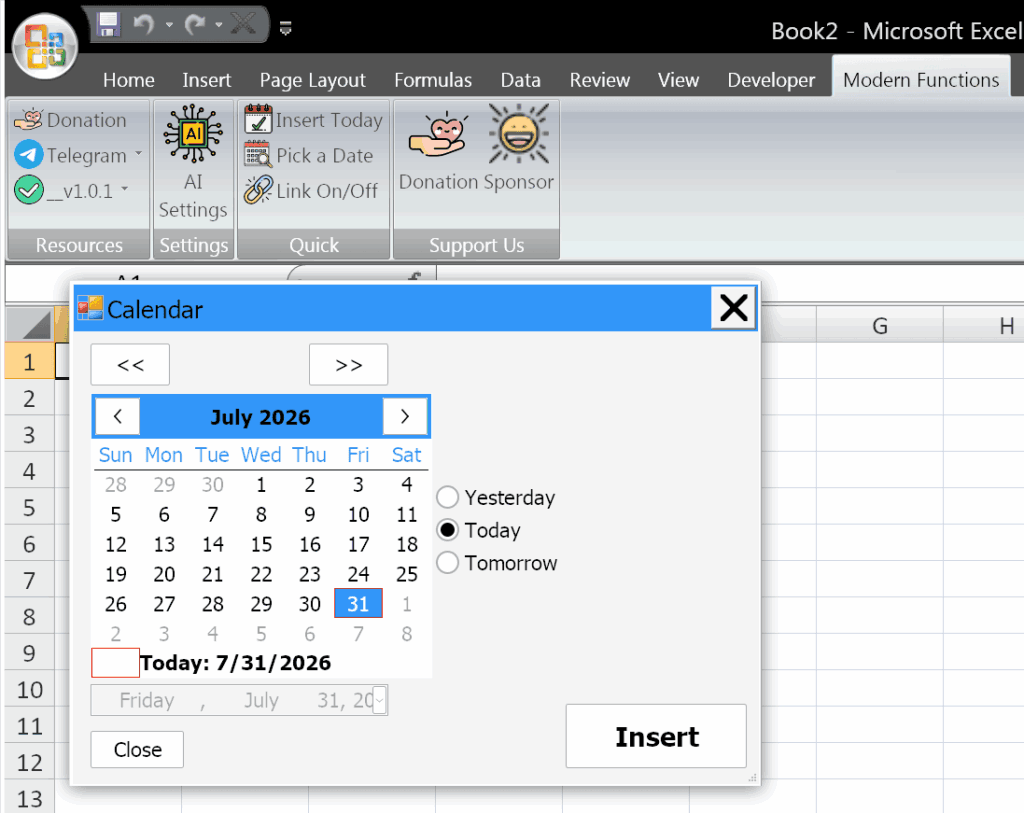
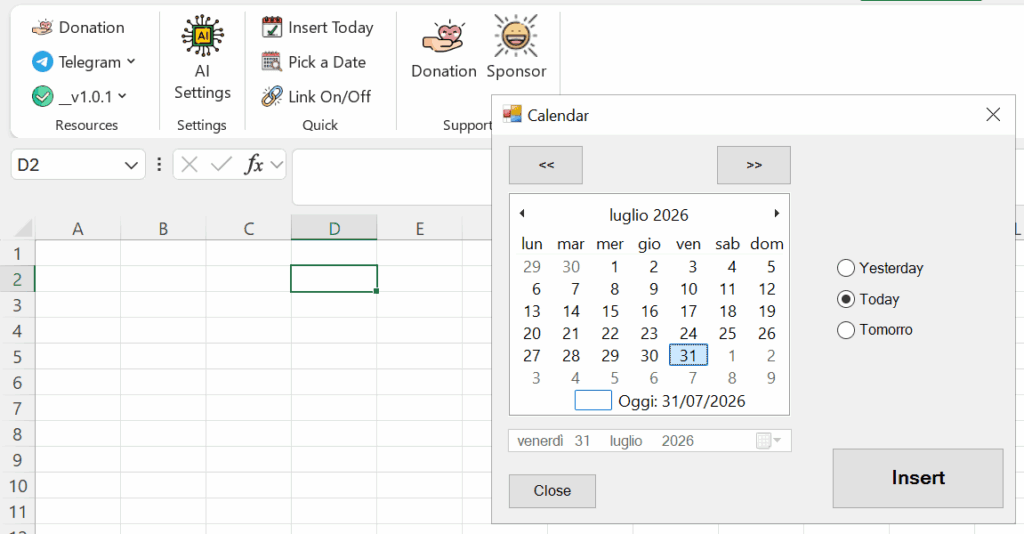
The Pick a Date feature opens a fully interactive calendar window that allows you to browse and select dates visually. Instead of typing dates manually, you simply click on the date you want, and it’s instantly inserted into the selected cell or cells.
This is particularly useful for:
- Error-free date entry: Eliminates formatting errors and typos
- Data consistency: Ensures all dates are entered in the same format
- Speedy data entry: Clicking is faster than typing, especially for large datasets
- User-friendly forms: Makes spreadsheets more intuitive and professional for others to use
- Date planning: See what day of the week a date falls on before selecting it
How to Pick a Date from a Calendar in Excel
- Select the cell or range of cells where you want the date to appear
- Go to the “Modern Functions” or “New Functions” tab on the ribbon (the name changes dynamically according to your Excel version)
- Click on the “Pick a Date” button
- A calendar window will open
In the calendar window, you can:
- Navigate months: Use the arrow buttons to move forward or backward
- Jump to month/year: Use the dropdown menus to quickly select a specific month or year
- See the day of the week: The calendar clearly shows which day of the week each date falls on
- Quick shortcuts: Click “Yesterday,” “Today,” or “Tomorrow” to instantly select one of those dates
- Select a date: Click on any date to insert it into the selected cell
The date is immediately inserted into your selected cell, perfectly formatted according to your system settings.
Key Features
| Feature | Benefit |
|---|---|
| Visual calendar | See dates in a familiar monthly grid layout |
| Month/year navigation | Quickly jump to any date in the past or future |
| Day of the week display | See what day of the week a date falls on before selecting |
| Yesterday/Today/Tomorrow shortcuts | One-click selection for common dates |
| Works on multiple cells | Insert the same date into multiple selected cells at once |
| Quick Access Toolbar | Add the button to your QAT for even faster access |
Adding to Quick Access Toolbar
The Pick a Date feature can be easily added to your Quick Access Toolbar for even faster access:
- Right-click on the “Pick a Date” button on the ribbon
- Select “Add to Quick Access Toolbar”
- The button now appears on your Quick Access Toolbar for one-click access at all times
This is especially useful if you frequently need to select dates and want the calendar available regardless of which ribbon tab you’re on.
Linux Users Note
If you are running Excel on Linux via Bottles, the calendar window may open with a default size that is not optimal for your screen. You can simply resize the window by dragging the corners or edges to fit your preferences. The window will remember its size for future use.
Example Use Cases
| Scenario | Why It’s Useful |
|---|---|
| Date entry forms | Users can select dates without worrying about formatting |
| Project timelines | Quickly pick start and end dates |
| Attendance logs | Mark attendance by selecting today’s date |
| Invoice creation | Easily set invoice dates |
| Event planning | Select and verify dates with day-of-week visibility |
| Data entry logs | Timestamp records with accurate dates |
Notes
- ✅ The feature inserts a static date – it will not update automatically
- ✅ The date format follows your system’s regional settings
- ✅ Works on single cells or multiple selected cells
- ✅ Available in all versions of Excel from 2007 onward
- ℹ️ Pick a Date is a unique MFU feature not found in any Excel version
- ⚠️ Linux users may need to resize the window for optimal display