The AVERAGE.WEIGHTED function is a unique feature introduced by Modern Functions Update (MFU) that does not exist in any version of vanilla Excel. You can now run it for free on your Excel from 2007 onward, including 365 and 2024 versions. It calculates the weighted average of a set of values based on corresponding weights.
Description
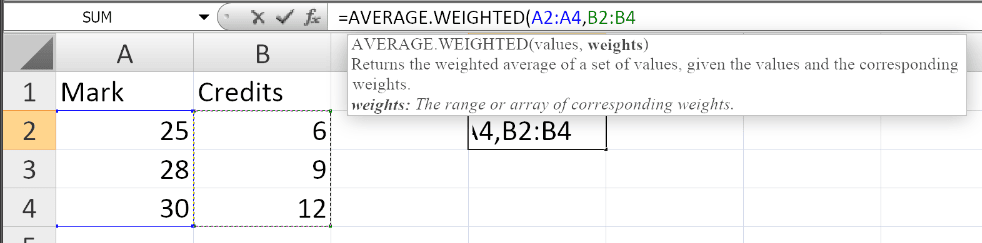
The AVERAGE.WEIGHTED function returns the weighted average of a set of values, where each value is multiplied by a corresponding weight before being summed and divided by the total of the weights.
A weighted average is different from a standard average because it accounts for the relative importance (weight) of each value. For example, in a grade calculation, a final exam might be worth 50% of the grade while quizzes are worth 10%, and a weighted average correctly reflects this importance.
This is particularly useful for:
- Grade calculation: Calculate weighted final grades based on assignment weights
- Financial analysis: Calculate weighted average cost or return
- Survey analysis: Weight responses based on demographic factors
- Inventory management: Calculate weighted average cost of goods
- Performance metrics: Weight KPIs based on their importance
Syntax
=AVERAGE.WEIGHTED(values, weights)
| Argument | Description |
|---|---|
values | Required. The range or array of numeric values to average. |
weights | Required. The range or array of corresponding weights for each value. |
Important Notes
- The
valuesandweightsranges must be the same size. - Both arguments must be numeric.
- Weights can be any positive numbers (they don’t need to sum to 100 or 1).
- If a weight is zero or negative, the corresponding value is effectively ignored.
- The function automatically handles the normalization of weights.
Examples
Basic Usage – Grade Calculation
If you have:
- Quizzes: 85, 90, 78 (weighted 20% total)
- Midterm: 82 (weighted 30%)
- Final: 92 (weighted 50%)
=AVERAGE.WEIGHTED({85, 90, 78, 82, 92}, {0.05, 0.05, 0.10, 0.30, 0.50})
Returns: 85.7
Using Cell Ranges
If values are in A2:A10 and weights in B2:B10:
=AVERAGE.WEIGHTED(A2:A10, B2:B10)
Weights Not Summing to 1
The function works even if weights don’t sum to 1:
=AVERAGE.WEIGHTED(A2:A10, B2:B10)
If weights are 10, 20, 30, 40, the function normalizes them automatically.
Weighted Average of Sales by Product
If product prices are in A2:A10 and quantities sold in B2:B10:
=AVERAGE.WEIGHTED(A2:A10, B2:B10)
Returns the average price weighted by quantity sold.
Using with SUMPRODUCT (Alternative)
If you don’t have AVERAGE.WEIGHTED, you can achieve the same with:
=SUMPRODUCT(A2:A10, B2:B10) / SUM(B2:B10)
Practical Use Cases
| Scenario | Formula |
|---|---|
| Grade calculation | =AVERAGE.WEIGHTED(A2:A10, B2:B10) |
| Weighted average cost | =AVERAGE.WEIGHTED(UnitCost, Quantity) |
| Survey weighting | =AVERAGE.WEIGHTED(Responses, Demographics) |
| Financial return | =AVERAGE.WEIGHTED(Returns, Investment) |
| Performance KPI | =AVERAGE.WEIGHTED(Scores, Importance) |
Notes
- ✅ Fully tested – The implementation in Modern Functions Update works reliably.
- ✅ The function is fully compatible with Excel 2007, 2010, and all later versions.
- ℹ️
AVERAGE.WEIGHTEDis a unique MFU feature not found in any Excel version. - ℹ️ Weights are automatically normalized (divided by their sum).
- ℹ️ The function returns the weighted average, not the sum of weighted values.
See Also
IFNA – Handles #N/A errors gracefully