The EXTRACT_LINK function is available only with Modern Functions Update (MFU). You can now run it for free on your Excel from 2007 onward, including 2024 and 365 versions. It extracts the URL from a cell that contains a hyperlink, returning the link address as text.
Description
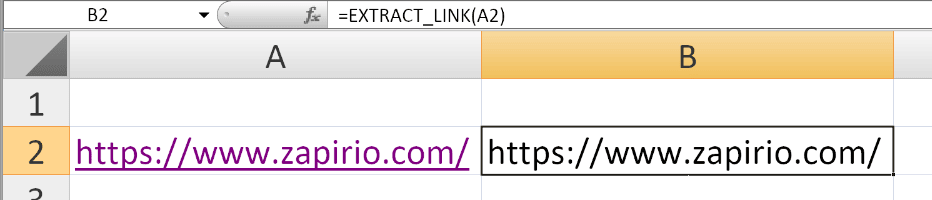
The EXTRACT_LINK function extracts the underlying URL from a cell that contains a hyperlink. If a cell displays text like “Click here” but contains a link to “https://example.com“, this function returns the actual URL.
This is particularly useful for:
- Extracting URLs: Get the actual web address from hyperlinked text
- Data cleaning: Extract links from imported data
- Reporting: Display both the link text and the URL separately
- Migration: Prepare hyperlink data for export or conversion
- Quality control: Verify that hyperlinks point to the correct destinations
Syntax
=EXTRACT_LINK(cell)
| Argument | Description |
|---|---|
cell | Required. A reference to a single cell containing a hyperlink. |
Important Notes
- ⚠️ Requires macros to be enabled – The function will not work if macros are disabled.
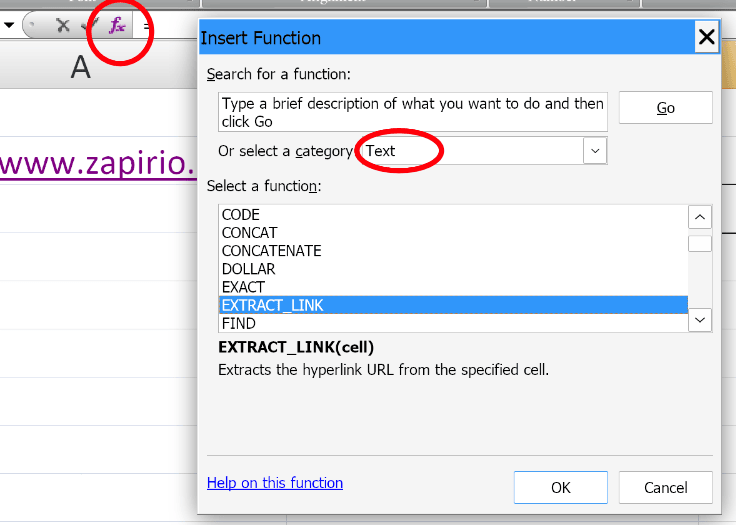
- ⚠️ The function may not appear while typing in older Excel versions, but it is there and fully operational.
- ℹ️ If the referenced cell does not contain a hyperlink, the function returns an empty string
""or#VALUEdepending on the scenario. - ℹ️ The
referencemust be a single cell – ranges are not supported.
Examples
Basic Usage
If cell A1 contains the text “Visit our site” with a hyperlink to “https://example.com“:
=EXTRACT_LINK(A1)
Returns: "https://example.com"
Extracting Multiple Links
If you have hyperlinks in A1:A10, you can extract each URL by dragging the formula down:
=EXTRACT_LINK(A1)
=EXTRACT_LINK(A2)
...
Checking if a Cell Contains a Hyperlink
Combine with IF to handle cells without hyperlinks:
=IF(EXTRACT_LINK(A1)="", "No link found", EXTRACT_LINK(A1))
Using with Other Functions
Extract the domain name from the extracted URL:
=TEXTAFTER(TEXTBEFORE(EXTRACT_LINK(A1), "/", 3), "//")
This extracts the domain from a URL like https://example.com/page → "example.com".
Validating Hyperlinks
Check if a link points to a specific domain:
=IF(EXTRACT_LINK(A1)="https://www.google.com", "Google link", "Other link")
Practical Use Cases
| Scenario | Formula |
|---|---|
| Extract URL from hyperlink | =EXTRACT_LINK(A1) |
| Check if link exists | =IF(EXTRACT_LINK(A1)="", "No link", EXTRACT_LINK(A1)) |
| Extract domain from URL | =TEXTAFTER(TEXTBEFORE(EXTRACT_LINK(A1), "/", 3), "//") |
| Compare two links | =EXTRACT_LINK(A1)=EXTRACT_LINK(B1) |
| Build HTML from link | ="<a href=""" & EXTRACT_LINK(A1) & """>" & A1 & "</a>" |
| Count hyperlinks in a range | =COUNTIF(A1:A10, EXTRACT_LINK(A1)) |
Troubleshooting
| Problem | What It Means | What To Do |
|---|---|---|
| #NAME? error | Excel doesn’t recognize EXTRACT_LINK | Install Modern Functions Update |
| #VALUE! error | Macros are disabled | Enable macros in Excel settings |
| Function doesn’t autocomplete | Older Excel version | Type the full function name manually |
| Returns #N/A | Cell does not contain a hyperlink | Check if the cell actually has a link |
Notes
- ✅ Fully tested – The implementation in Modern Functions Update works reliably.
- ✅ The function is fully compatible with Excel 2007, and all later versions.
- ⚠️ Requires macros to be enabled to function.
- ℹ️
EXTRACT_LINKis a unique MFU feature not found in any Excel version. - ⚠️ In older Excel versions, the function may not autocomplete while typing, but typing the full name works.
See Also
UNIQUE – Returns unique values from a range
REGEXTEST – Tests text against a regex pattern
REGEXEXTRACT – Extracts text using regex
REGEXREPLACE – Replaces text using regex
XLOOKUP – Modern lookup function
FILTER – Filters data based on criteria