The ASK.AI function is available only with Modern Functions Update (MFU). You can now run it for free on your Excel from 2007 onward, including 2024 and 365.
Description
The ASK.AI function lets you ask any question in natural language, and the AI — powered by an external AI, like Ollama (local, offline AI) or OpenAI (ChatGPT) via API — will return an answer. It functions like a conversational AI assistant right inside your spreadsheet.
Think of it as having ChatGPT inside your Excel formula. You can ask for explanations, summaries, analysis, or creative content, and the AI responds directly in the cell.
Please keep in mind that this function requires setup with third-party AI providers. MFU does not provide the AI. If you have a powerful hardware, you can opt to run your AI locally and for free, otherwise you should consider paid API AI providers.
This is particularly useful for:
- Data analysis: Ask “What are the key trends in this sales data?” and get insights
- Formula assistance: Ask “What does this formula do?” or “Write a formula to calculate X”
- Content generation: Create marketing descriptions, summaries, or reports from your data
- Data categorization: Automatically classify text into categories
- Translation: Translate text between languages
- Education: Learn about concepts directly within Excel
Syntax
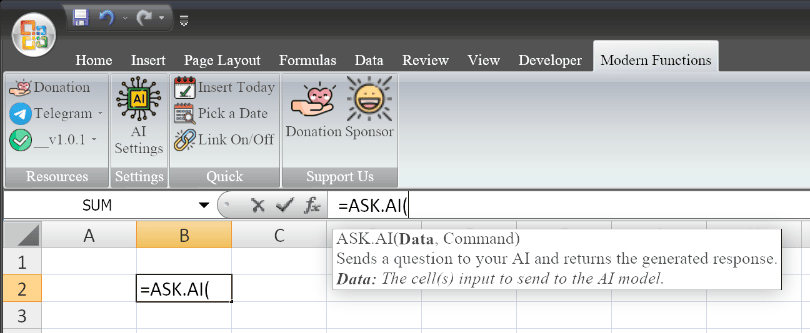
=ASK.AI(data, comand)
| Argument | Description |
|---|---|
data | Required. The cell or range of cells containing the data you want the AI to analyze or use as context. |
comand | Required. The question or instruction to send to the AI model. |
Important Notes
ASK.AIrequires either a local installation (free, offline) or an API provider (paid) to function.- The
dataargument provides the AI with the information it needs to answer your question. - Results are generated in real-time and may take a few seconds depending on the model and connection.
- The function is designed for one-off questions rather than complex multi-turn conversations.
Examples
Basic Question with Data Range
If you have sales data in A1:C10 and want analysis:
=ASK.AI(A1:C10, "Summarize the key trends in this sales data")
The AI analyzes your data and returns a summary.
Single Cell as Data
If A1 contains “Wireless Keyboard” and B1 contains “150 units sold”:
=ASK.AI(A1, "Write a short marketing description for this product")
Multiple Cells as Data
To generate a description using multiple data points:
=ASK.AI(A1:B1, "Write a marketing description")
Using Data for Analysis
With sales figures in B2:B100:
=ASK.AI(B2:B100, "What is the average growth trend in this data?")
Data Categorization
To categorize text in A2:
=ASK.AI(A2, "Categorize this text as 'Positive', 'Neutral', or 'Negative'")
Returns the appropriate category based on the text content.
Creating Summaries
To create a narrative from multiple data points:
=ASK.AI(A2:A10, "Create a one-sentence summary of this data")
Comparing Two Data Ranges
If you have sales data for two products:
=ASK.AI(A2:B100, "Compare the performance of these two products")
Practical Use Cases
| Scenario | Formula |
|---|---|
| Analyze sales data | =ASK.AI(B2:B100, "What are the key trends?") |
| Generate product description | =ASK.AI(A1:B1, "Write a catchy description") |
| Categorize feedback | =ASK.AI(A2, "Categorize this comment") |
| Explain a formula | =ASK.AI(A2, "Explain this formula in simple terms") |
| Compare data | =ASK.AI(A2:B100, "Compare these two columns") |
| Summarize text | =ASK.AI(A2:A10, "Summarize this text") |
| Brainstorm ideas | =ASK.AI(A2, "List 5 ways to improve this") |
| Translate text | =ASK.AI(A2, "Translate to Spanish") |
Setup Notes
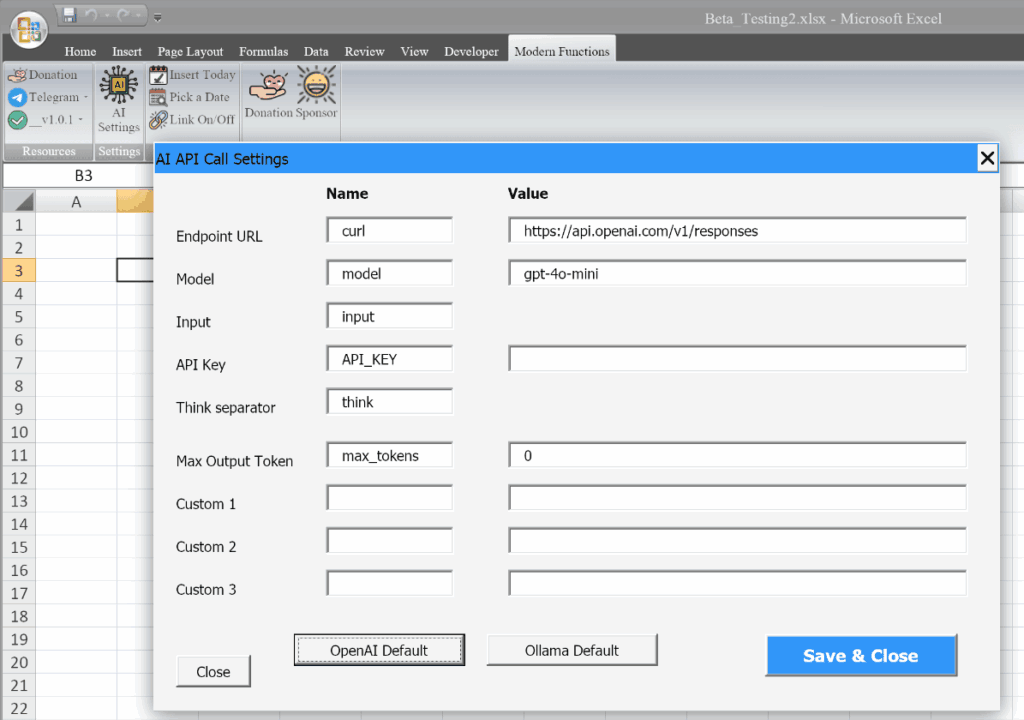
To use ASK.AI, you need to set up your preferred AI provider:
Option 1: Ollama (Free, Local, Offline)
- Install Ollama from ollama.com
- Download a model (e.g.,
ollama pull llama3.2) - Configure MFU to use Ollama. Press on the button for default settings
- No API key required – runs completely offline
Option 2: OpenAI (Paid, Online)
- Get an API key from platform.openai.com
- Enter your API key in MFU settings. Press on the button for default settings
- Choose your preferred model (e.g., gpt-3.5-turbo, gpt-4)
Option 3: Custom
You can try to set any other AI locally or with external API calls.
Notes
- ✅ Fully tested – The implementation in Modern Functions Update works reliably.
- ✅ The function is fully compatible with Excel 2007, 2010, and all later versions.
- ℹ️
ASK.AIis a unique MFU feature not found in any Excel version. - ℹ️ Responses are text values and can be used in other formulas.
- ⚠️ Results depend on the AI model used; quality may vary between Ollama and OpenAI.
- ⚠️ The function requires internet access for OpenAI (but not for Ollama).
See Also
REGEXTEST– Tests text against a regex patternREGEXEXTRACT– Extracts text using regexREGEXREPLACE– Replaces text using regexXLOOKUP– Modern lookup functionFILTER– Filters data based on criteriaUNIQUE– Returns unique values from a range