The REGEXREPLACE function is officially available only on Excel 365, but thanks to Modern Functions Update (MFU) you can now run it on your Excel 2007, 2010, 2013, 2016, 2019, 2021 and 2024 versions. It works exactly as its original Microsoft counterpart.
Description
The REGEXREPLACE function replaces all or part of a text string that matches a regular expression (“regex”) pattern with another string. Unlike the REPLACE and SUBSTITUTE functions, which swap exact text, REGEXREPLACE can target variable patterns such as any digit, a group of letters, multiple spaces, or only the first or last occurrence of a match.
Think of it as search-and-replace on steroids. Instead of specifying exactly what text to find, you define a pattern – and Excel finds everything that matches it.
This is particularly useful for:
- Data cleaning: Remove unwanted characters, extra spaces, or formatting artifacts
- Standardizing formats: Reformat phone numbers, dates, or product codes to a consistent structure
- Masking sensitive information: Anonymize email addresses, phone numbers, or personal data
- Extracting values: Remove text from strings leaving only numbers or specific patterns
- Transforming text: Reorder names from “Last, First” to “First Last”
Syntax
=REGEXREPLACE(text, pattern, replacement, [occurrence], [case_sensitivity])
| Argument | Description |
|---|---|
text | Required. The text or reference to a cell containing the text you want to modify. |
pattern | Required. The regular expression (“regex”) that describes the text pattern to replace. |
replacement | Required. The text to replace the matched results with. |
[occurrence] | Optional. Specifies which instance of the pattern to replace. • 0 or omitted (default) – Replace all matches• Positive number – Replace that specific occurrence (counting from the start) • Negative number – Replace that occurrence (counting from the end) |
[case_sensitivity] | Optional. Determines if the match is case-sensitive. • 0 or omitted (default) – Case-sensitive• 1 – Case-insensitive |
Basic Tokens Reference
Here are some simple tokens for reference when writing regex patterns:
| Token | Matches |
|---|---|
[0-9] | Any numeric digit |
[a-z] | Any lowercase letter |
[A-Z] | Any uppercase letter |
. | Any single character |
a | The literal character “a” |
a* | Zero or more “a” |
a+ | One or more “a” |
\d | Any digit (same as [0-9]) |
\s | Any whitespace character |
^ | Start of a text string (anchor) |
$ | End of a text string (anchor) |
| | OR logic between patterns |
Examples
Basic Usage – Replacing Delimiters
To replace dashes with forward slashes:
=REGEXREPLACE("item-color-size-qty", "-", "/")
Returns: "item/color/size/qty"
Removing Unwanted Characters
To remove all digits from a text string, replace them with an empty string:
=REGEXREPLACE("Order #12345", "\d+", "")
Returns: "Order #"
Using Capture Groups to Reformat Names
If cell A2 contains “Smith, John”, you can switch to “John Smith” using capturing groups:
=REGEXREPLACE(A2, "([^,]+),\s*(.+)", "$2 $1")
([^,]+)– Captures everything before the comma (last name) as$1\s*– Matches any spaces after the comma(.+)– Captures everything after the comma (first name) as$2"$2 $1"– Reverses the order
Returns: "John Smith"
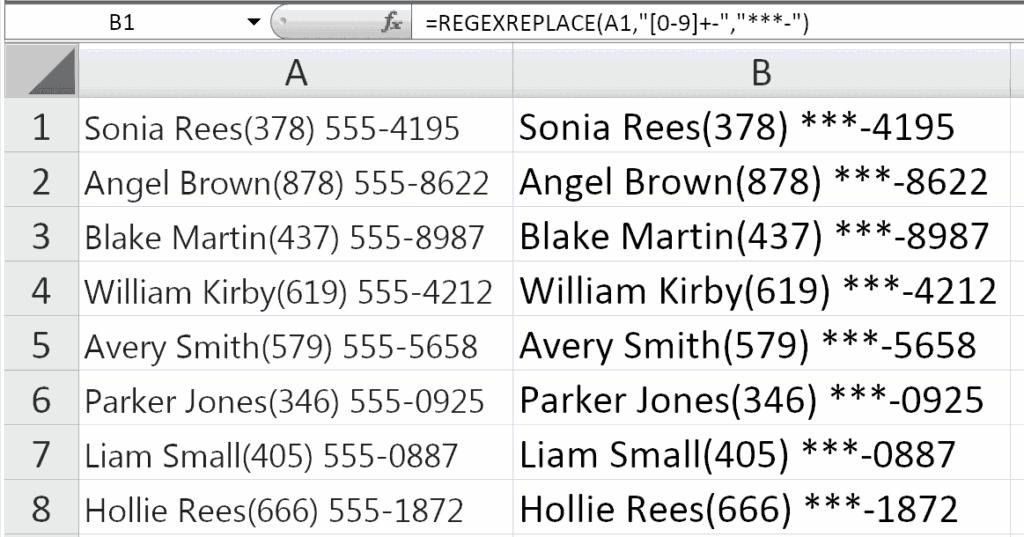
Masking Phone Numbers
To replace the first 3 digits of a phone number with asterisks:
=REGEXREPLACE("(123)-456-7890", "\d+", "***", 2)
The occurrence argument is set to 2, so only the second numeric group is replaced.
Returns: "(123)-***-7890"
Anonymizing Email Addresses
To mask a username in an email address, keeping only the first character:
=REGEXREPLACE("alex25@example.com", "(.)([^@]*)@(.+)", "$1***@$3")
(.)– Captures the first character as$1([^@]*)– Captures the rest of the username as$2@(.+)– Captures the domain as$3
Returns: "a***@example.com"
Removing Repeated Punctuation
To reduce repeated exclamation marks to a single one:
=REGEXREPLACE("Wow!!!", "([!?])\1+", "$1")
Returns: "Wow!"
Case-Insensitive Replacement
To replace “excel” with “Excel” regardless of case:
=REGEXREPLACE("I love EXCEL", "excel", "Excel", 0, 1)
Returns: "I love Excel"
Using a Range as Text Argument
If using Excel 365 with dynamic arrays, you can pass an entire range:
=REGEXREPLACE(A2:A100, "\d+", "")
This processes all cells in the range and spills results.
Replacing Only the Last Occurrence
To replace only the last matching occurrence, use a negative occurrence:
=REGEXREPLACE("apple-orange-grape-banana", "-", " | ", -1)
Returns: "apple-orange-grape | banana"
Practical Use Cases
| Scenario | Formula |
|---|---|
| Remove all digits | =REGEXREPLACE(A1, "\d+", "") |
| Remove everything except digits | =REGEXREPLACE(A1, "[^0-9]", "") |
| Reformat names (Last, First to First Last) | =REGEXREPLACE(A1, "([^,]+),\s*(.+)", "$2 $1") |
| Mask phone numbers | =REGEXREPLACE(A1, "\d+", "***", 2) |
| Anonymize email | =REGEXREPLACE(A1, "(.)([^@]*)@(.+)", "$1***@$3") |
| Remove repeated punctuation | =REGEXREPLACE(A1, "([!?])\1+", "$1") |
| Remove extra spaces | =REGEXREPLACE(A1, "\s{2,}", " ") |
| Reformat product codes | =REGEXREPLACE(A1, "(\d{3})-(\d{2})-(\d{4})", "$1/$2/$3") |
Important Notes
- ✅ Fully tested – The implementation in Modern Functions Update works identically to Microsoft’s original function introduced in Microsoft 365.
- ✅ The function is fully compatible with Excel 2007, 2010, and all later versions.
- ℹ️
REGEXREPLACEuses the PCRE2 flavor of regular expressions. - ℹ️
REGEXREPLACEalways returns text values. - ℹ️ Capturing groups are defined in the pattern with parentheses
()and can be referenced in the replacement as$1,$2, etc. - ℹ️ The function is case-sensitive by default. Use
case_sensitivity = 1for case-insensitive matching. - ⚠️ If no match is found, the original text is returned unchanged.
See Also
REGEXTEST– Tests if text matches a regex patternREGEXEXTRACT– Extracts text that matches a regex patternTEXTBEFORE– Extracts text before a delimiterTEXTAFTER– Extracts text after a delimiterTEXTSPLIT– Splits text into multiple valuesIFNA– Handles#N/Aerrors gracefully