The MAXIFS function was officially introduced with Excel 2019, but thanks to Modern Functions Update (MFU) you can now run it on your Excel 2007, 2010, 2013 and 2016 versions. It works exactly as its original Microsoft counterpart.
Description
The MAXIFS function returns the largest numeric value in a range of cells that meet one or more specified conditions. It is the conditional counterpart to the MAX function, similar to how SUMIFS relates to SUM.
This is particularly useful for:
- Finding top performers: Get the highest sales figure for a specific product or region
- Data analysis: Find maximum values that meet multiple criteria simultaneously
- Quality control: Identify the largest value within a specific category
- Reporting: Create dynamic summaries based on conditions
Syntax
=MAXIFS(max_range, criteria_range1, criteria1, [criteria_range2, criteria2], ...)
| Argument | Description |
|---|---|
max_range | Required. The range of cells from which you want to find the maximum value. |
criteria_range1 | Required. The first range to evaluate against the condition. |
criteria1 | Required. The condition to apply to criteria_range1. |
criteria_range2, criteria2, ... | Optional. Additional ranges and their associated conditions. Up to 126 range/criteria pairs are supported. |
Important Rules
- All
criteria_rangearguments must be the same size asmax_range, otherwiseMAXIFSreturns a#VALUE!error. - If no cells meet the criteria,
MAXIFSreturns 0 (zero). - Empty cells that meet criteria are automatically ignored.
MAXIFSrequires actual ranges – you cannot substitute arrays.
Criteria Syntax
The MAXIFS function supports logical operators (>, <, <>, =) and wildcards (*, ?, ~) for partial matching. When using operators, they must be enclosed in double quotes.
| Target | Criteria |
|---|---|
| Cells greater than 75 | ">75" |
| Cells equal to 100 | 100 or "100" |
| Cells less than or equal to 100 | "<=100" |
| Cells equal to “Red” | "red" |
| Cells not equal to “Red” | "<>red" |
| Cells that begin with “X” | "x*" |
| Cells less than value in A1 | "<"&A1 |
| Cells less than today | "<"&TODAY() |
When using a value from another cell, the cell reference must be concatenated to the operator using the ampersand (&).
Examples
Basic Usage – Single Condition
If you have sales data and want to find the maximum sale amount for “USA”:
=MAXIFS(E2:E100, C2:C100, "USA")
This returns the highest value in E2:E100 where the corresponding cell in C2:C100 equals “USA”.
Multiple Conditions
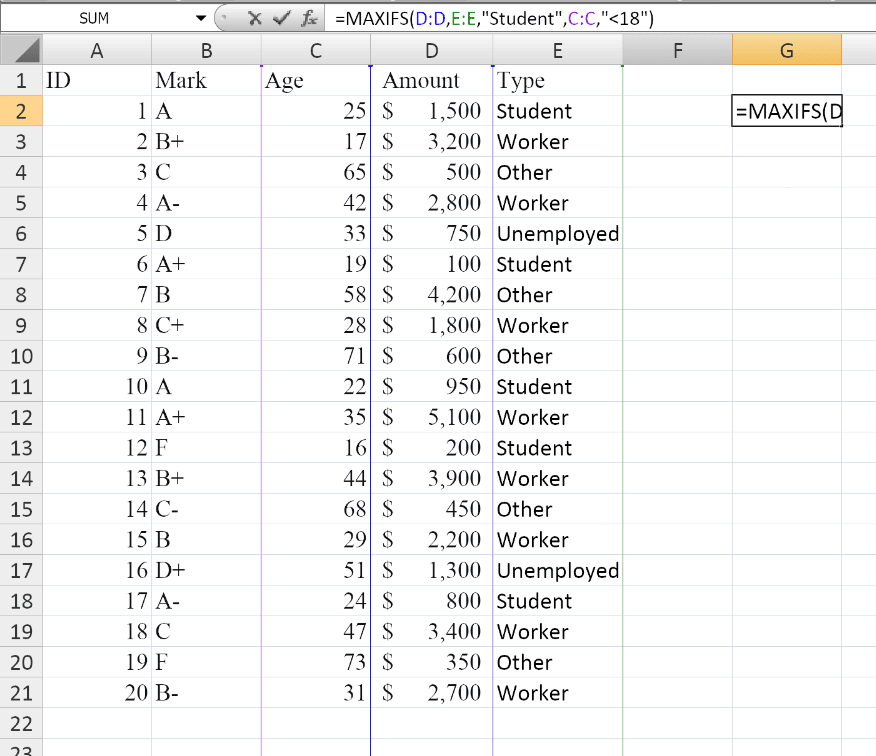
To find the maximum Amount for Student under 18:
=MAXIFS(D:D,E:E,"Student",C:C,"<18")
Please see the table and formula:
Using Values from Other Cells
To find the maximum value in A1:A100 where cells in B1:B100 are greater than the value in C1:
=MAXIFS(A1:A100, B1:B100, ">"&C1)
The concatenation ("<"&C1) is required because Excel needs to evaluate the cell reference first.
Using Wildcards
To find the maximum value where cells in B1:B100 begin with “a”:
=MAXIFS(A1:A100, B1:B100, "a*")
The asterisk (*) matches any number of characters.
Practical Use Cases
MAXIFS vs MAX + IF (Array Formula)
In older Excel versions without MAXIFS, you would use an array formula based on MAX and IF:
{=MAX(IF(criteria_range1=criteria1, max_range))}
Example: Find maximum value in A1:A100 where B1:B100 equals “X”:
{=MAX(IF(B1:B100="X", A1:A100))}
Note: This is an array formula and must be entered with Ctrl+Shift+Enter.
Advantages of MAXIFS:
- ✅ Simpler and more readable syntax
- ✅ No Ctrl+Shift+Enter required
- ✅ Multiple conditions are easier to add
- ✅ Works natively with references
Notes
- ✅ Fully tested – The implementation in Modern Functions Update works identically to Microsoft’s original function introduced in Excel 2019.
- ✅ The function is fully compatible with Excel 2007, 2010, and all later versions.
- ℹ️
MAXIFScan handle up to 126 range/criteria pairs. - ℹ️ If no cells match the criteria,
MAXIFSreturns0(zero) – be careful if0is a valid value in your data. - ⚠️
MAXIFSrequires actual ranges, not arrays. - ⚠️ All criteria ranges must be the same size as
max_range.