The IFNA function was officially introduced with Excel 2013, but thanks to Modern Functions Update (MFU) you can now run it on your Excel 2007 & 2010 versions. It works exactly as its original Microsoft counterpart.
Description
The IFNA function allows you to catch and handle only the #N/A error, replacing it with a custom value you specify. If the formula does not return an #N/A error, IFNA simply returns the result of the formula.
This is particularly useful for:
- Lookup functions: Handling cases where
VLOOKUP,HLOOKUP,INDEX MATCH, or potentiallyXLOOKUPorZLOOKUPcannot find a value - User-friendly reporting: Displaying custom messages like “Not found” instead of cryptic error codes
- Error isolation: Catching
#N/Aerrors while keeping other errors visible, so you don’t accidentally hide real formula problems - Data validation: Indicating when a value is missing from a dataset
Syntax
=IFNA(value,value_if_na)
| Argument | Description |
|---|---|
value | The formula, value, or reference to check for a #N/A error. |
value_if_na | The value to return if the value argument evaluates to #N/A. |
Examples
Basic Usage with VLOOKUP
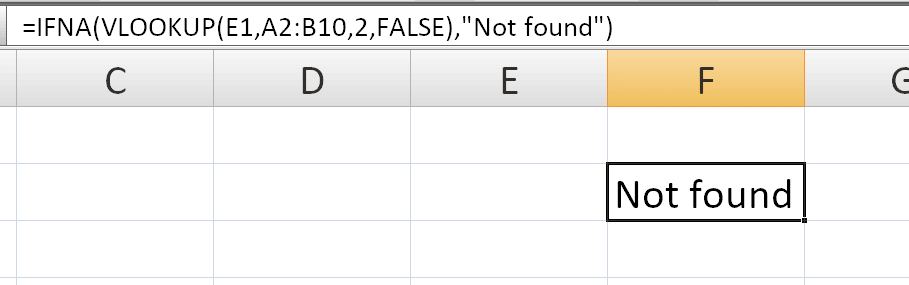
If VLOOKUP cannot find a match, it returns #N/A:
=IFNA(VLOOKUP(E1,A2:B10,2,FALSE),"Not found")
Returns the VLOOKUP result if found, or "Not found" if the value is missing.
Returning a Blank Cell
To display an empty cell instead of an error:
=IFNA(VLOOKUP(E1, A2:B10, 2, FALSE), "")
With MATCH Function
=IFNA(MATCH(E1, A2:A10, 0), "Value not in list")
With Complex Formulas
Wrap any formula that might return #N/A:
=IFNA(
    (VLOOKUP(@$E$7:$E$105, '2025 Material'!$A$2:$E$21, 5, FALSE)
    / VLOOKUP(@$E$7:$E$105, '2025 Material'!$A$2:$E$21, 4, FALSE))
    * H7,
    ""
)
This returns a blank cell if either VLOOKUP returns #N/A.
IFNA vs IFERROR
Both functions have the same structure, but one important difference:
IFNA– Catches only#N/Aerrors (perfect for lookups)IFERROR– Catches all error types (#N/A,#VALUE!,#REF!,#NAME?,#DIV/0!, etc.)
Why this matters:
If you accidentally misspell VLOOKUP as VLOKUP:
IFNA(VLOKUP(...), "Not found")→ Shows#NAME?error (you see the problem)IFERROR(VLOKUP(...), "Not found")→ Shows"Not found"(you hide the problem)
For lookups, IFNA is the safer choice: it returns your custom message only when a value is genuinely missing, while letting real formula bugs stay visible.
Practical Use Cases
Notes
- ✅ Fully tested – The implementation in Modern Functions Update works identically to Microsoft’s original function introduced in Excel 2013.
- ✅ The function is fully compatible with Excel 2007, 2010, and all later versions.
- ℹ️
IFNAonly catches#N/Aerrors; other errors pass through unchanged. - ℹ️ If the
valueargument is an array formula,IFNAreturns an array of results. - ℹ️
XLOOKUPhas a built-inif_not_foundargument that does the same job. ForVLOOKUP,MATCH, andHLOOKUP,IFNAis the way to go.