The XMATCH function was officially introduced with Excel 2021, but thanks to Modern Functions Update (MFU) you can now run it on your Excel 2007, 2010, 2013, 2016 and 2019 versions. It works exactly as its original Microsoft counterpart.
Description
The XMATCH function searches for a specified value in a range or array and returns its relative position. It is the modern replacement for the legacy MATCH function, offering more flexibility and intuitive defaults.
Think of it as MATCH, but better in every way:
- Search in any direction – From first to last, or from last to first (reverse search)
- Exact match by default – No more forgetting to specify
0for an exact match - Better approximate matching – Find the next smaller or next larger item without sorting requirements
- Wildcard support – Use
*,?, and~for partial matches - Binary search option – Super-fast lookups on large, sorted datasets
If you’ve ever been frustrated by MATCH’s default approximate match behavior or its inability to search from the bottom up, XMATCH is the solution.
Syntax
=XMATCH(lookup_value, lookup_array, [match_mode], [search_mode])
| Argument | Description |
|---|---|
lookup_value | Required. The value to search for. |
lookup_array | Required. The range or array to search. Must be a single row or column. |
[match_mode] | Optional. Specify the match type (see table below). Default is 0 (exact match). |
[search_mode] | Optional. Specify the search direction (see table below). Default is 1 (first to last). |
Match Modes
| Value | Behavior |
|---|---|
0 (default) | Exact match. If none found, returns #N/A. |
-1 | Exact match, or if none found, the next smaller item. |
1 | Exact match, or if none found, the next larger item. |
2 | Wildcard match where *, ?, and ~ have special meaning. |
3 | Regex match (Excel 365 only) – powerful pattern matching. |
Search Modes
| Value | Behavior |
|---|---|
1 (default) | Search from first item to last (top to bottom). |
-1 | Search from last item to first (bottom to top) – reverse search. |
2 | Binary search (requires lookup_array sorted in ascending order) – optimized for speed. |
-2 | Binary search (requires lookup_array sorted in descending order) – optimized for speed. |
Examples
Basic Usage – Finding a Position
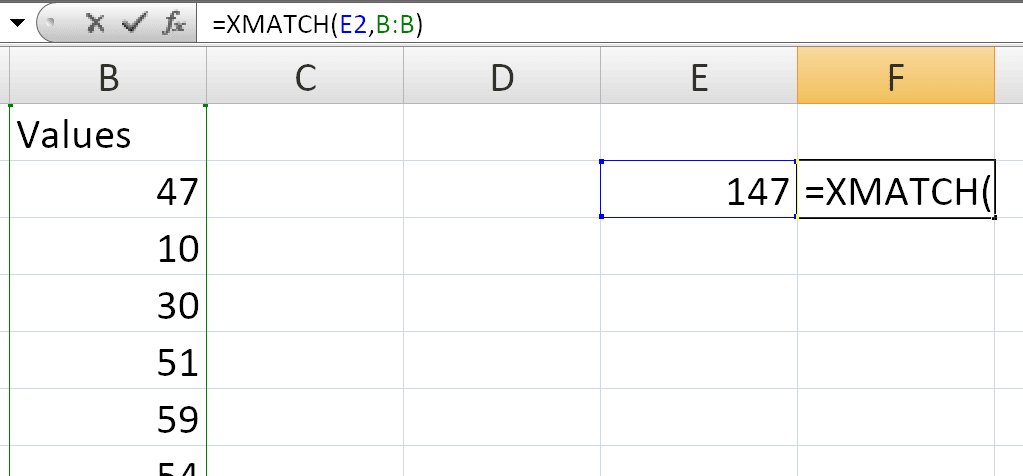
To find the position of 147 in a list of planets (range all B column):
=XMATCH(E2,B:B)
Combining with INDEX
To retrieve the diameter of Mars from column C:
=INDEX(C5:C13, XMATCH(G4, B5:B13))
Returns: 6792
Reverse Search (Find the Last Match)
If you have a list of sales transactions and want the most recent transaction for a customer:
=XMATCH(G2, A2:A201, 0, -1)
The -1 in the search_mode argument tells Excel to search from the bottom up, returning the position of the last matching value.
Finding the Next Larger Value
If you have a sorted list of sales volumes and want to find how many people are eligible for a bonus (starting at 10,000):
=XMATCH(10000, B2:B6, 1)
If no exact match is found, this returns the position of the next larger value.
Wildcard Search
To find the first product code starting with “GD” (using the * wildcard):
=XMATCH("GD*", A2:A100, 2)
The 2 in match_mode tells XMATCH you’re using wildcards.
Finding the Interval Between Occurrences
To calculate the number of rows since the last occurrence of a value in column A:
=LET(a, XMATCH(A2, A$1:A1, 0, -1), IF(ISNA(a), "", ROW(A2)-a))
This uses XMATCH with search_mode = -1 to search upward from the current row.
XMATCH vs MATCH – Key Differences
Practical Use Cases
Notes
- ✅ Fully tested – The implementation in Modern Functions Update works identically to Microsoft’s original function introduced in Excel 2021.
- ✅ The function is fully compatible with Excel 2007, 2010, and all later versions.
- ℹ️
XMATCHdefaults to an exact match, unlikeMATCHwhich defaults to approximate match. - ℹ️ The
search_modeargument is what enables reverse search and binary search options. - ⚠️ For binary search modes (
2or-2), thelookup_arraymust be sorted correctly, otherwise invalid results are returned. - ℹ️ The
lookup_arraymust be a single row or column.